


Introduction
Dynamic Group memberships are one of those quality of life features that simplify the lives of Entra admins, especially in large organizations. As the rule goes, though, features that can be misconfigured will be misconfigured. We have seen broad membership rules in multiple penetration tests and red team engagements; let’s take a look at one case we encountered recently and how to (ab)use it should you come across it.
A little bit of pretext
Microsoft’s Entra ID allows administrators to create dynamic groups, provided they are on the P2 licenses (pay up). They allow you to automatically assign (or remove) users or devices to said groups based on certain properties of said user or device (e.g. principalName, displayName, and other attributes).
An admin can create rules using the dynamic query builder in the group creation form:
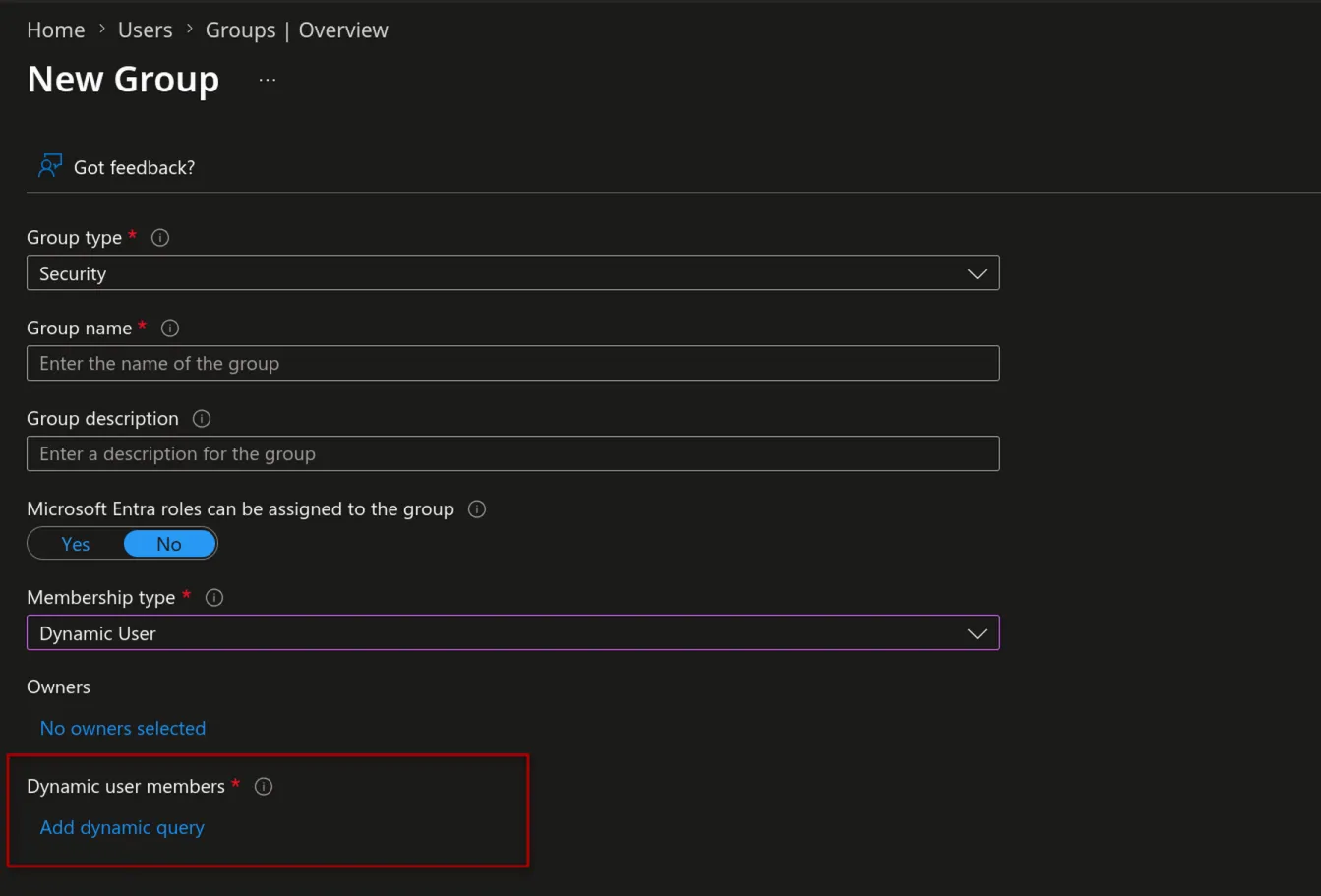
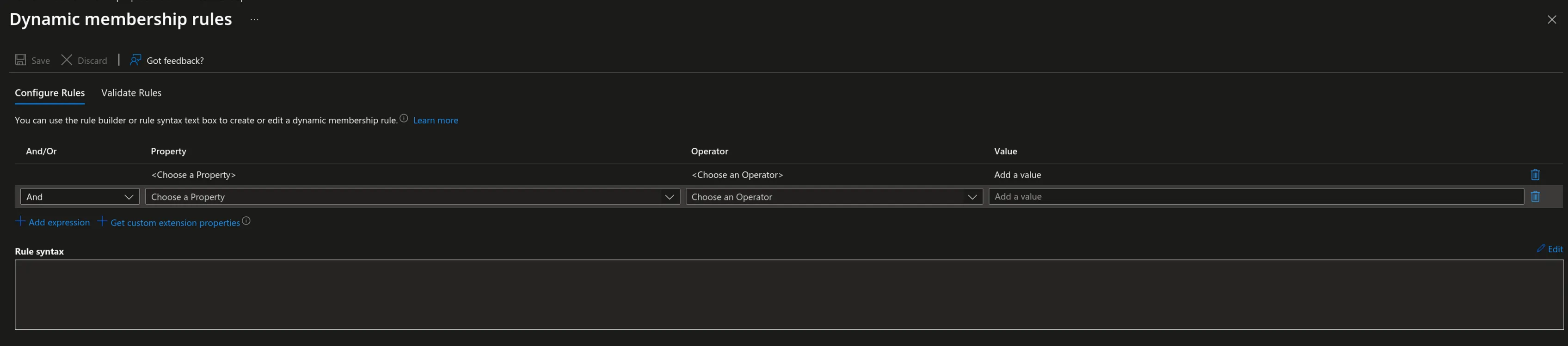
This is a great quality of life feature for large tenants, as once you have a standardized user/device creation you can use the information you have to create such dynamic groups that provide access to applications, cloud resources (e.g. Sharepoint sites), or allocate licenses to users automatically.
A sample dynamic membership rule looks like this:
(user.userPrincipalName -startsWith "Admin-")- This will assign all users that have a UPN that starts with
Admin-to the group being created.
Here’s the catch, sometimes
Let’s take the following scenario:
You have a dynamic group named “Entra Admins” in your tenant. That group is used to provide access to specific resources that only specific admins should be allowed to access, temporarily. These users are given special admins accounts that start with Adm-.
As time goes on, more and more admins get added to or removed from the group. As an admin yourself and to save yourself time, you go and set the membership rule to:
(user.userPrincipalName -startsWith "Adm")This does the job as intended, any future admin account is added automatically to this group and your job is done. The problem though is it does the job TOO well, because:
- A) Its too inclusive: what if a person named Admira joins the organization.
- B) If a user manages to find a way to create a user account, this can facilitate quick privilege escalation.
We’ll focus on scenario B (A is still funny to think about though).
Exhibit A - From On-Prem Active Directory to Entra
In an assumed-breach or red team setting, you are likely given an AD domain account with no special privileges, with the domain typically synced to Entra ID.
If you aren’t a Domain Admin, Account Operator, Enterprise Admin, or part of the Administrators groups, the ways to create additional user accounts will depend on the environment you’re in but are limited. Your best bet is to find mis-configured permissions (GenericAll|WriteDacl|WriteOwner|Owns) on Organizational Units (OUs) or containers.
- In bloodhound, you can look for the permissions above from objects you control to OUs and containers.
- With PowerView, the following query should give you an idea:
Get-DomainObjectAcl -SearchBase "OU=...,DC=..." -ResolveGUIDs | ? { $_.ActiveDirectoryRights -match 'CreateChild|GenericAll|GenericWrite|WriteDacl' }Something like the following is what you want (one can dream):
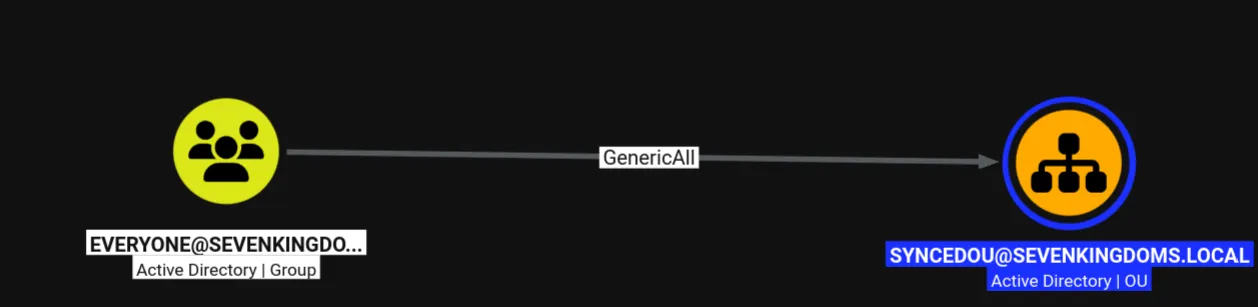
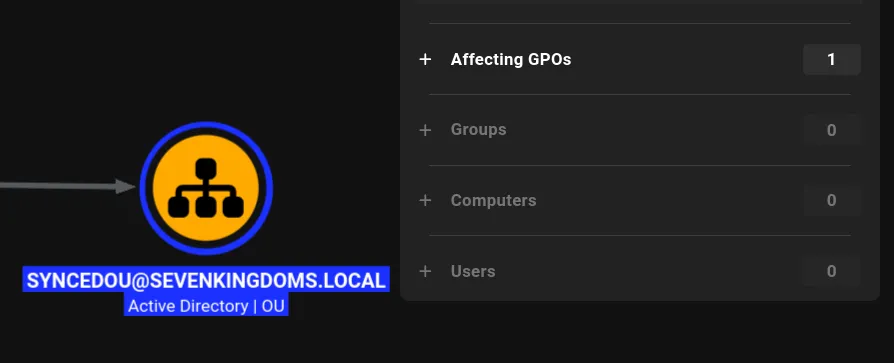
Smaller organizations will usually sync all/most objects to Entra, whereas larger organizations will have OU filtering (Inclusion-Based filtering) in place where only select OUs and their objects are synced. To ensure your created user gets synced (and abuse that dynamic membership rule) make sure to keep that in mind.
If you find that you have one of the above permissions over an OU, then you can create a user through LDAP. The bloodyad example below is a quick way:
uv run bloodyad --host 192.168.121.114 -d sevenkingdoms.local -u Basic.User -p 'Password' add user Admira.Stark 'Password' --ou "OU=SyncedOU,DC=SEVENKINGDOMS,DC=local"If you get an insufficientAccessRights / ERROR_ACCESS_DENIED error in BloodyAD, chances are the GenericAll ACE is not being inherited by the child objects within said OU. To work around it, you can patch the ACE (given your GenericAll privilege) with BloodyAD’s add genericAll flag as follows:
$ uv run bloodyad --host 192.168.121.114 -d sevenkingdoms.local -u Basic.User -p 'Password' add genericAll "OU=SyncedOU,DC=SEVENKINGDOMS,DC=local" Basic.User
[+] Basic.User has now GenericAll on OU=SyncedOU,DC=SEVENKINGDOMS,DC=local
This should patch the ACE, and allow you to create the user.
$ uv run bloodyad --host 192.168.121.114 -d sevenkingdoms.local -u Basic.User -p 'Password' add user Admira.Stark 'Password' --ou "OU=SyncedOU,DC=SEVENKINGDOMS,DC=local"
[+] Admira.Stark created
When that user gets synced to the cloud, it will match against the dynamic membership rule of the Entra Admins group and it’ll get placed there.
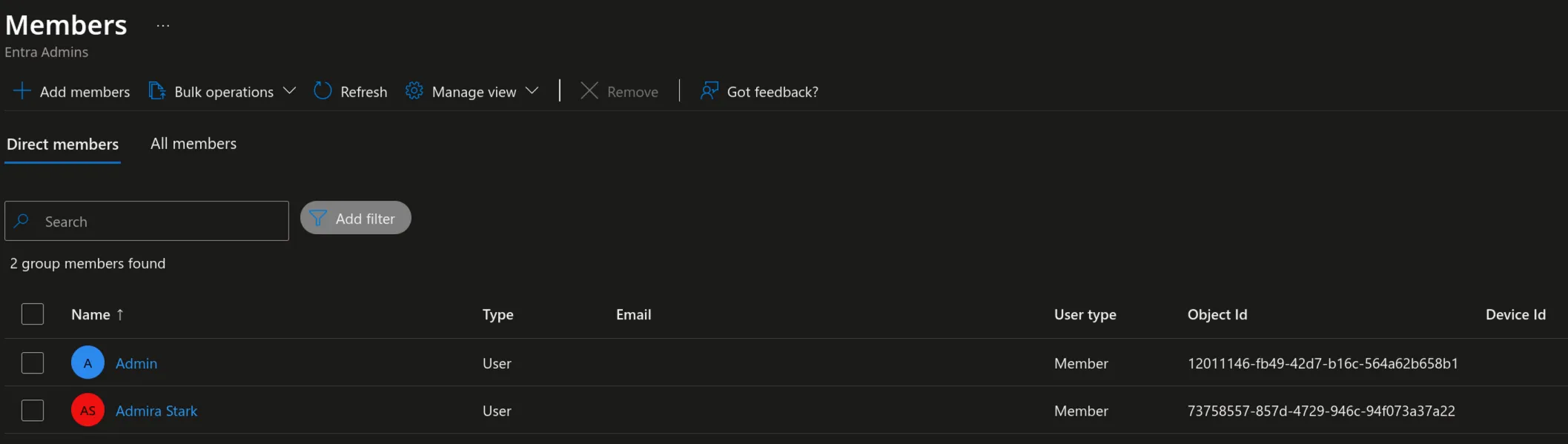
Exhibit B - External Guest Accounts
Guest accounts are utilized to enable (almost) seamless B2B collaboration. If you tried inviting an external user to a Teams team (please change the name Microsoft), shared a file with an external user through Share Point or One Drive, or gave access to Power Automate, you have utilized this feature.
When one of the actions above are utilized, the invited user gets a “Guest” account created in your tenant a principle format (UPN) of a special format:
useremail#EXT#@<tenantname>.onmicrosoft.comGuest users by default have limited privileges: They can manage their profile, change their password, and retrieve VERY limited information about other users and directory information. This is by design.
However, dynamic memberships make these guest accounts very useful. If you notice in the format above, the UPN starts with the user email, giving us a way to work around the StartsWith rules that we see often in Entra environments.
For example, inviting [email protected] into the tenant:
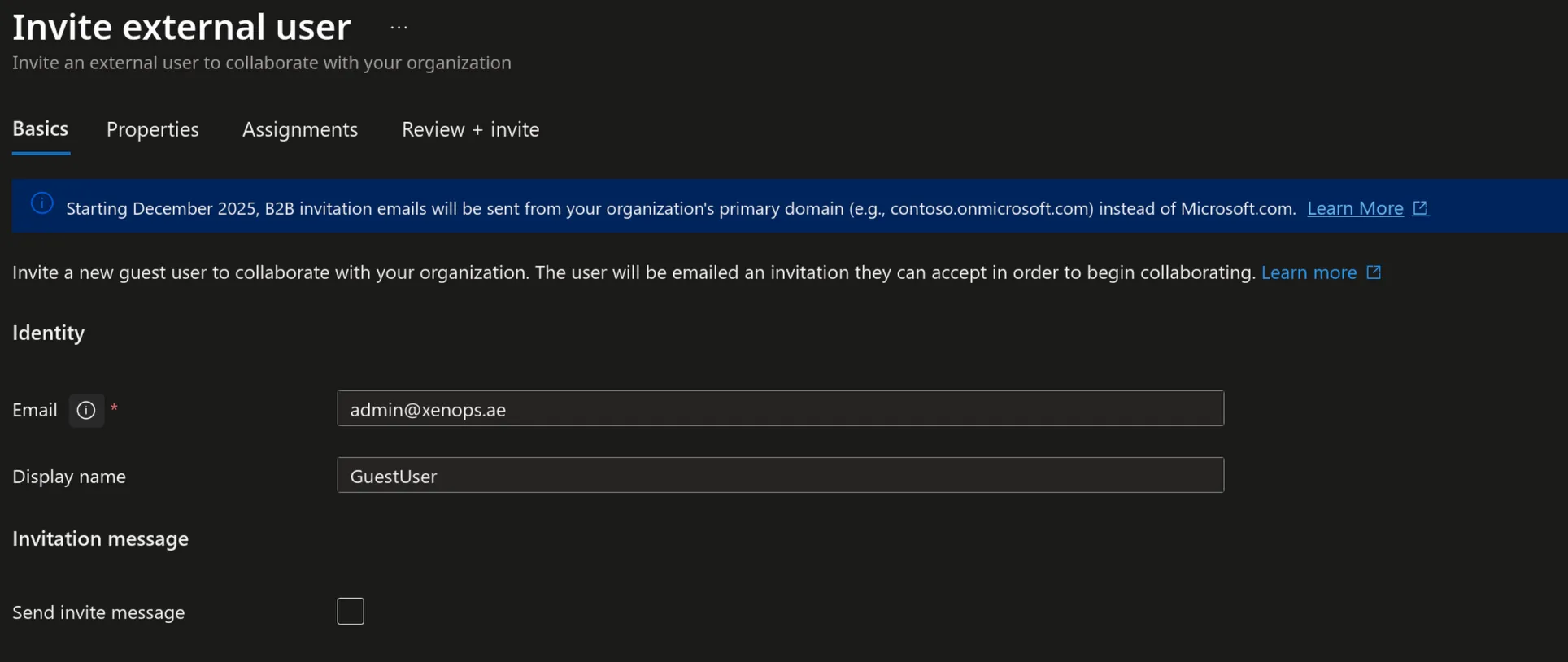
Creates the following user in the tenant:
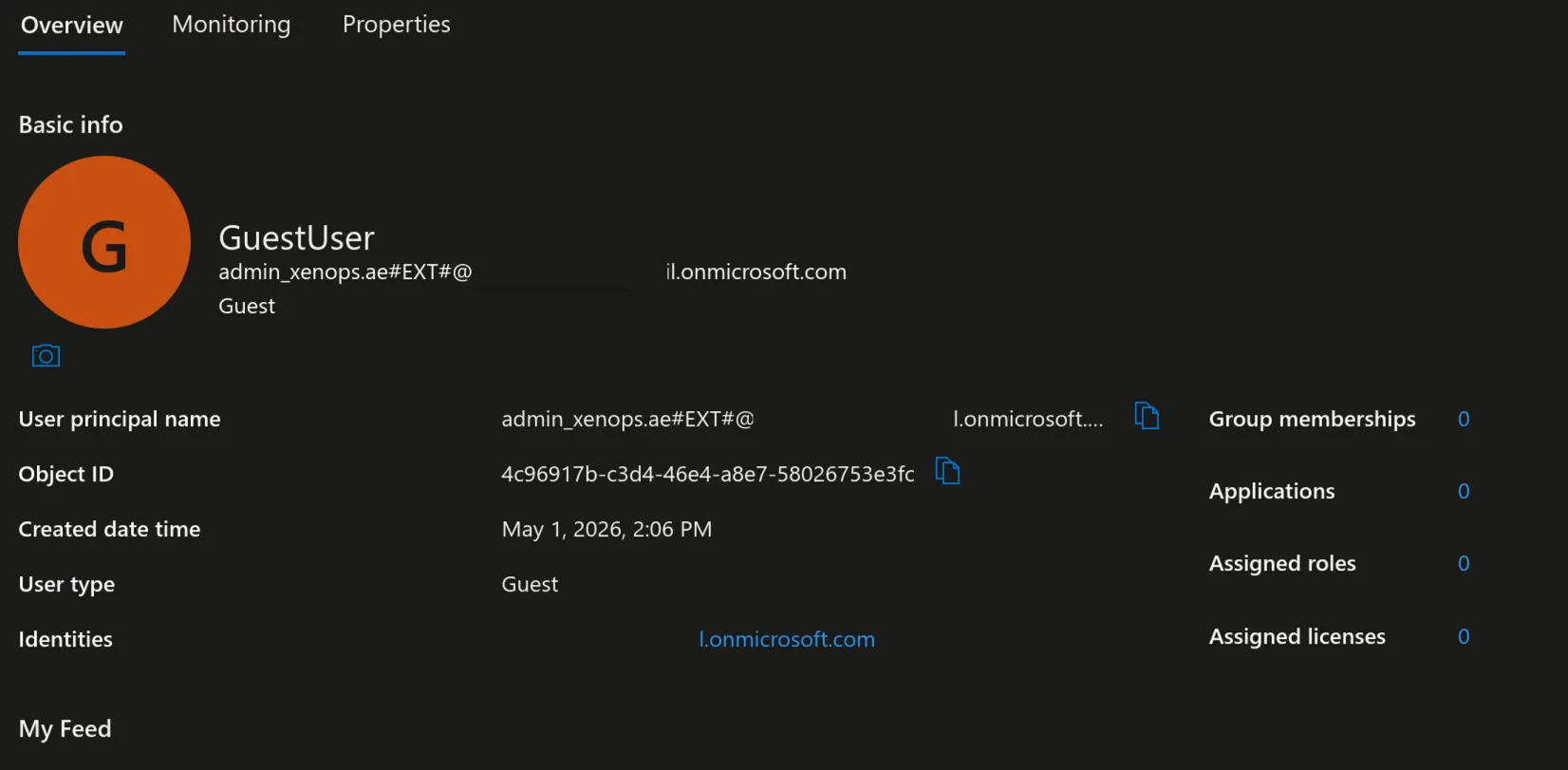
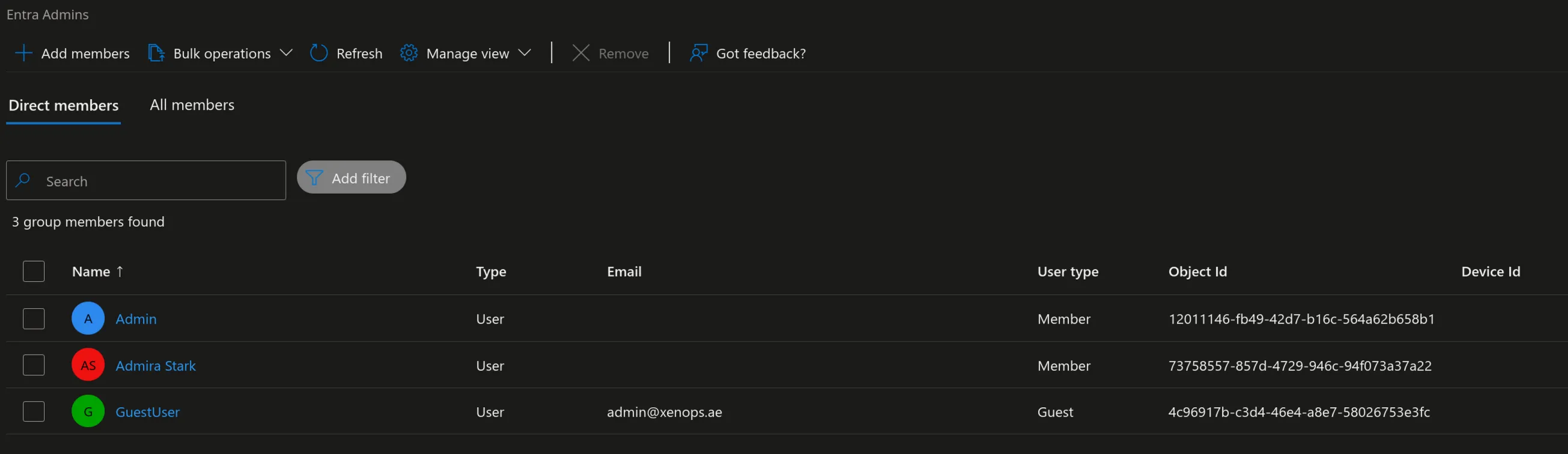
Notice the UPN. With it, we can pass the dynamic group rule and get assigned to the Entra Admins group.
How can I, as a regular user, invite an external user?
This is the question worth pondering. The main setting that affects how/who you can invite is the External Identities set of settings in Entra. By default, the rules are lax enough that anyone in the organization can invite anyone from any domain.
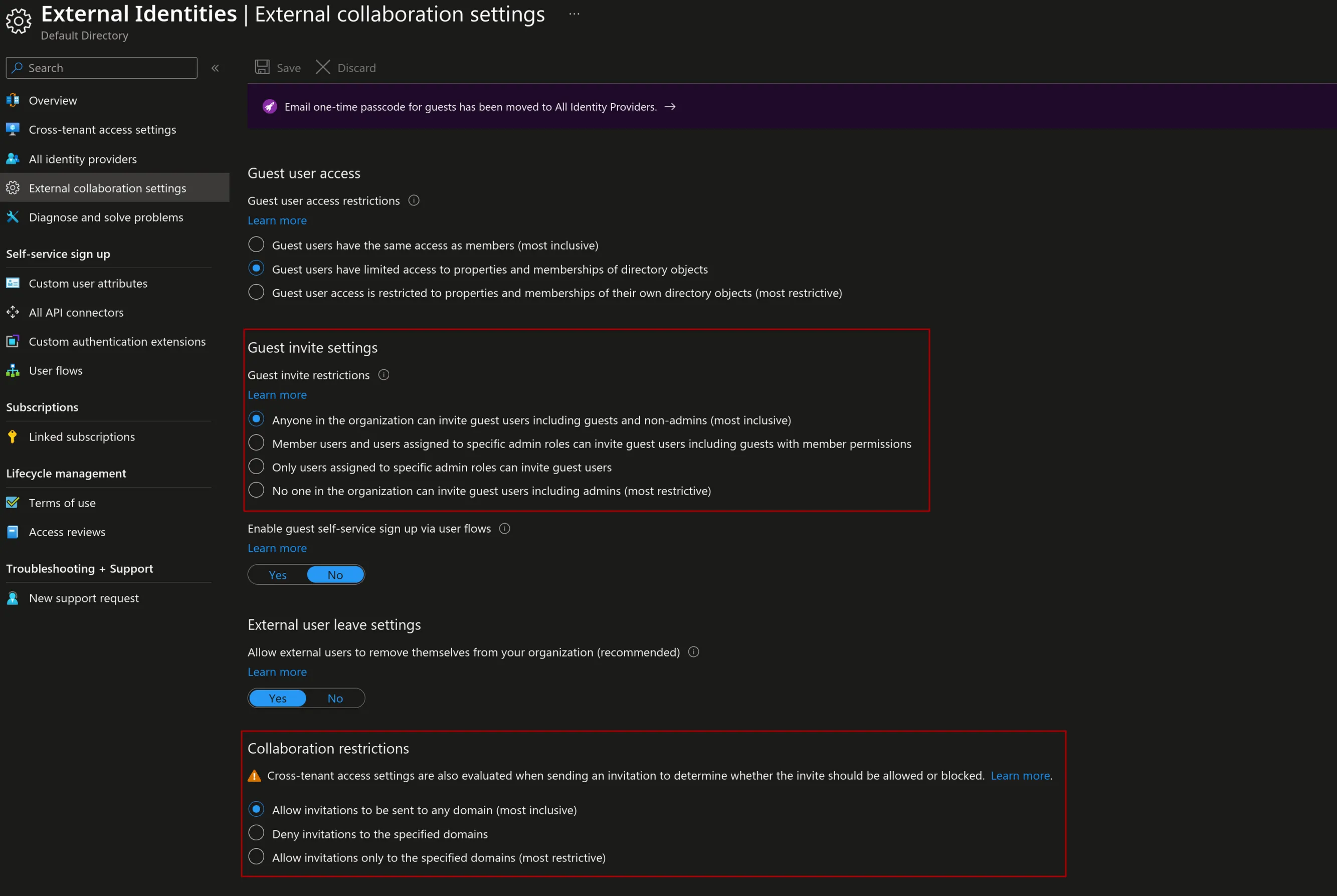
The two red blocks are the settings we care about. For Guest invite settings, the first two settings are considered lax and allow regular users to invite members. With regards to collaboration restrictions, the default option is the Allow Any setting. Its followed by the Blacklist option, and the third is the whitelist option.
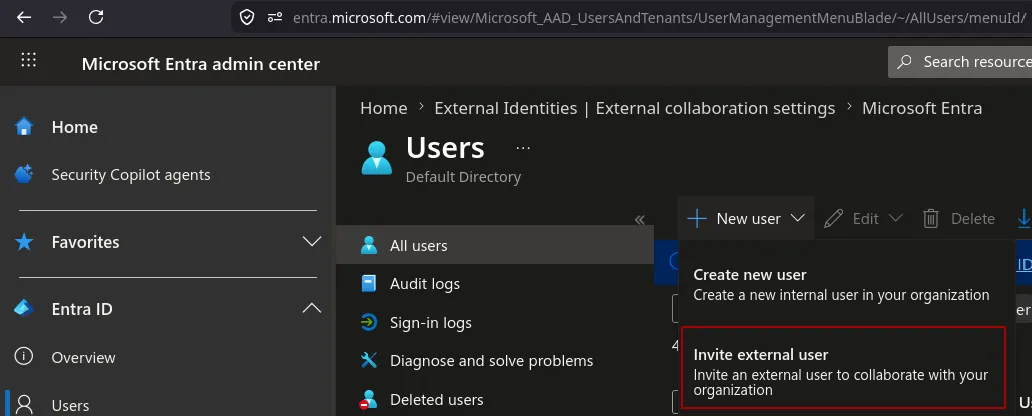
If the external identities setting are lax, the quickest way to invite an external user is through the Entra dashboard itself. In the Users view, click on New user > Invite External User.
More often than not though, admins restrict access to these views and you get greeted with the following:
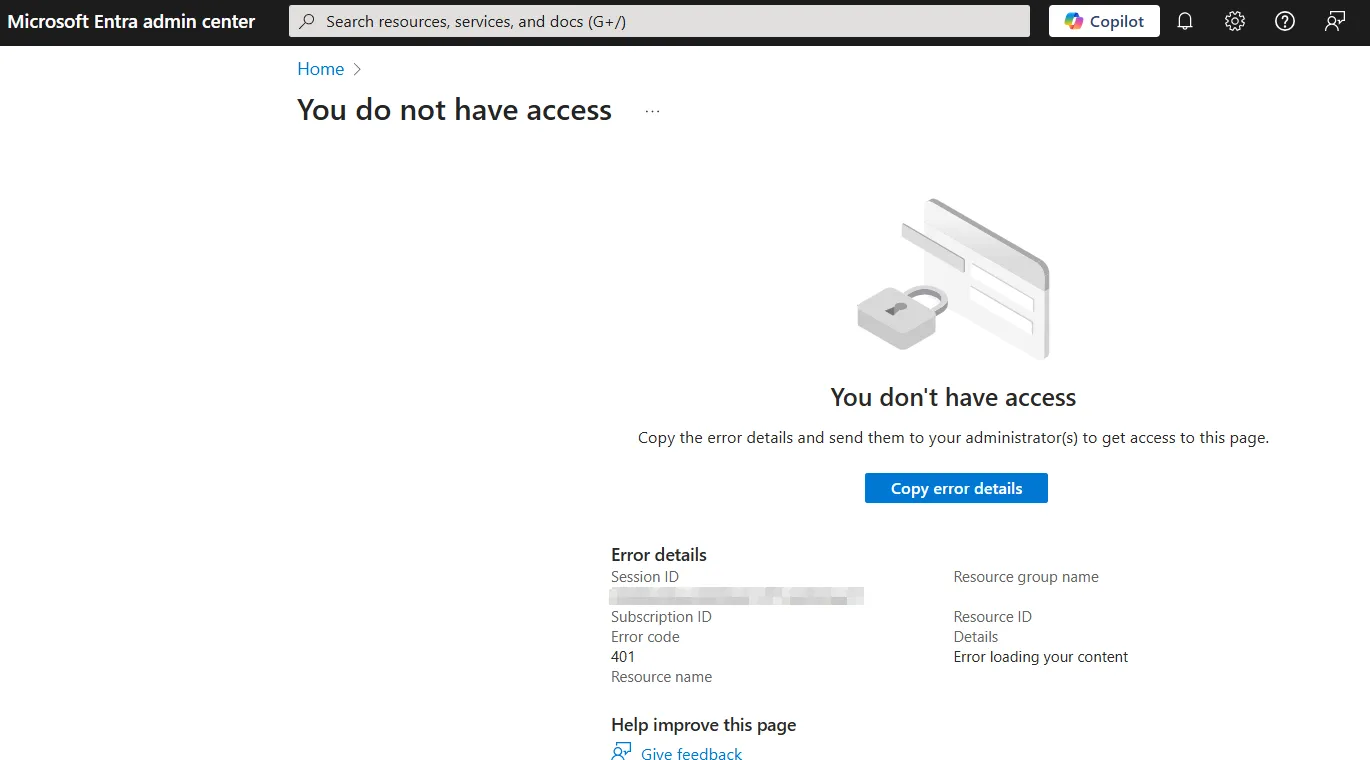
Of course, this only restricts GUI access to the portal and not the actual Graph API. If you want GUI only options, you go with the following options.
Adding a member to a Teams Team
By default, the Teams app gives the user the ability to create a team through which they can invite members in. These users can be internal tenant users, or external ones that are then invited as guests. If these guests accept the invitation, they get guest accounts created in your tenant in the same way described above.
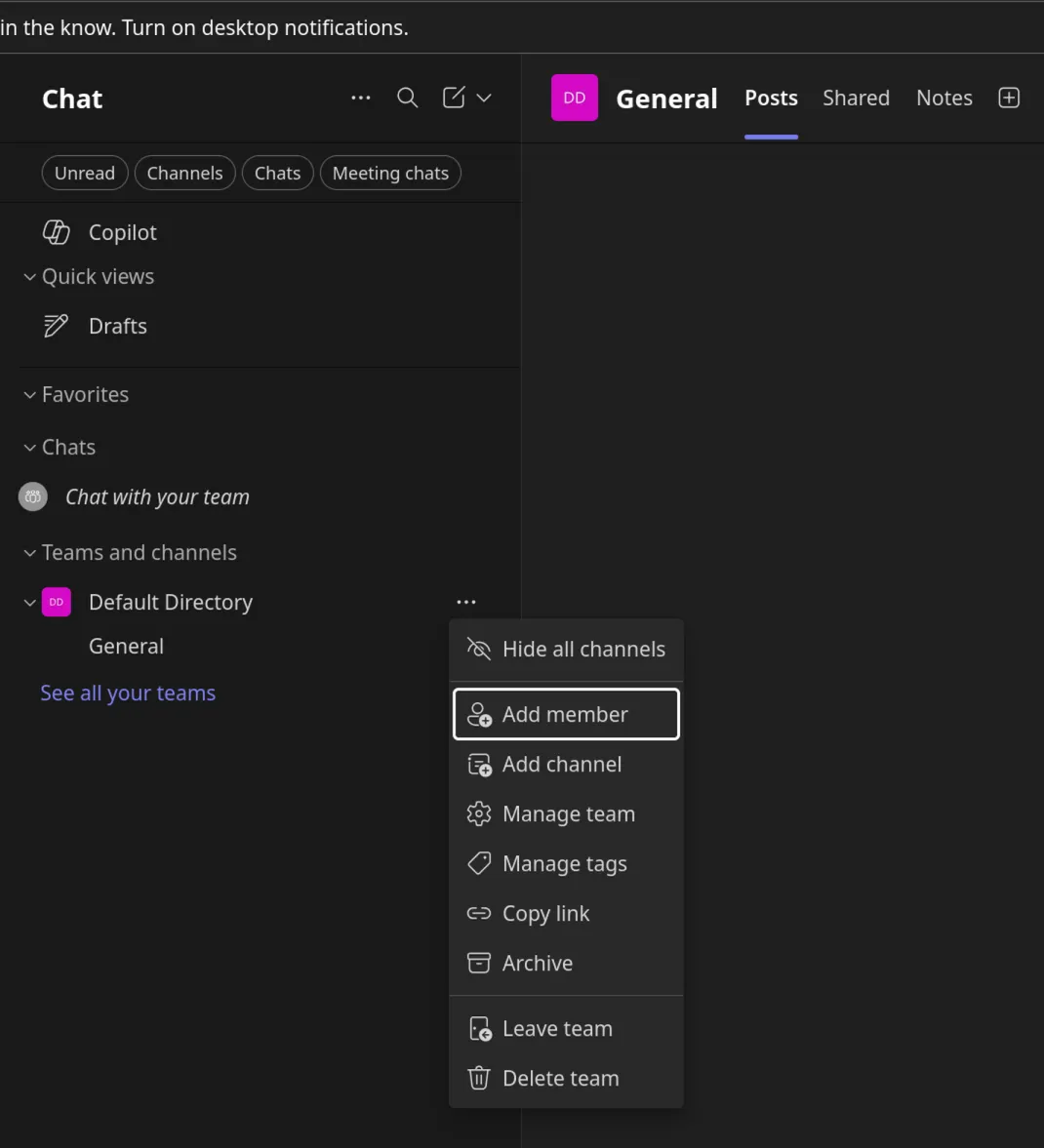
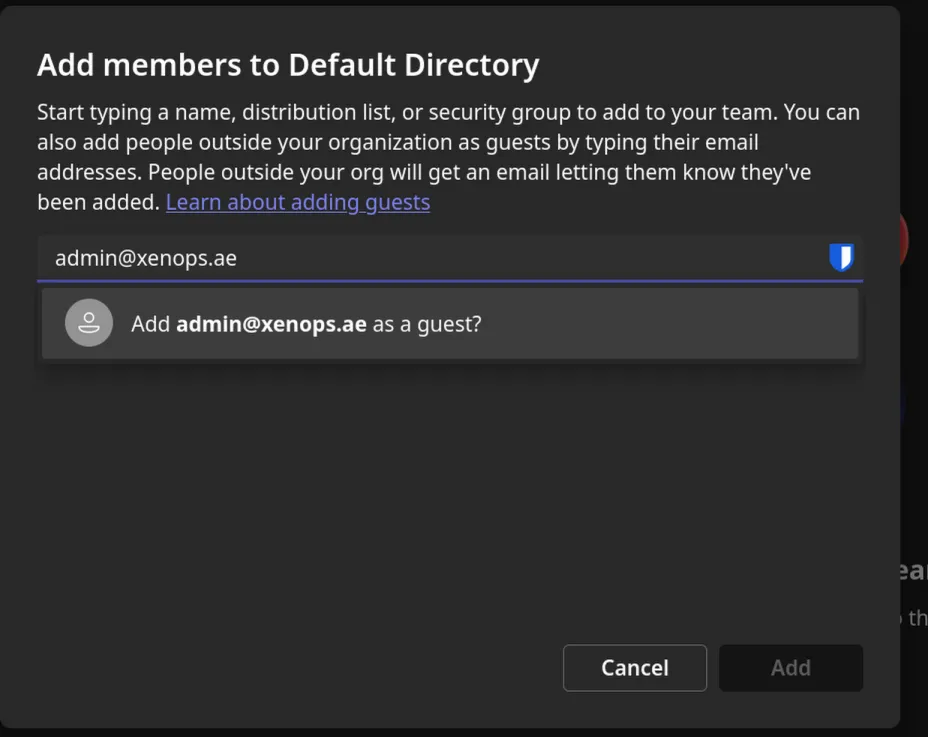
Once invited, the receiving user can then accept it and gets the account created. If you didn’t receive the invite, you can simply login to teams with the invited account (even if no tenant), and Microsoft will send you a code to login to the tenant you’re being invited to.
Checking back at the admin center, we can see the guest account created:

Sharing a file through OneDrive/Sharepoint
Files shared with other users through OneDrive or SharePoint perform the same action. Lets look at One Drive, pick a file you want to share and send it to a target “external” user.
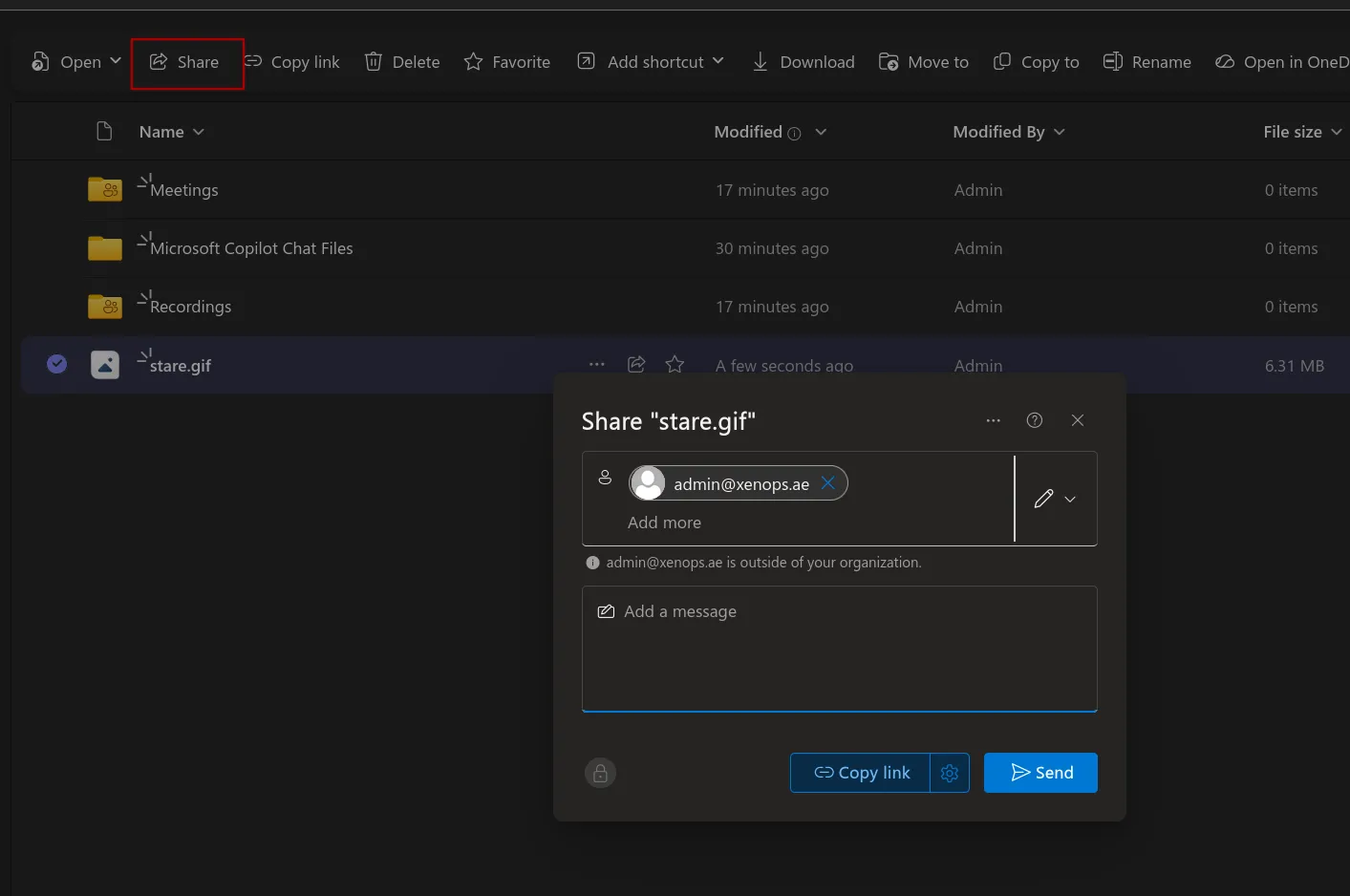
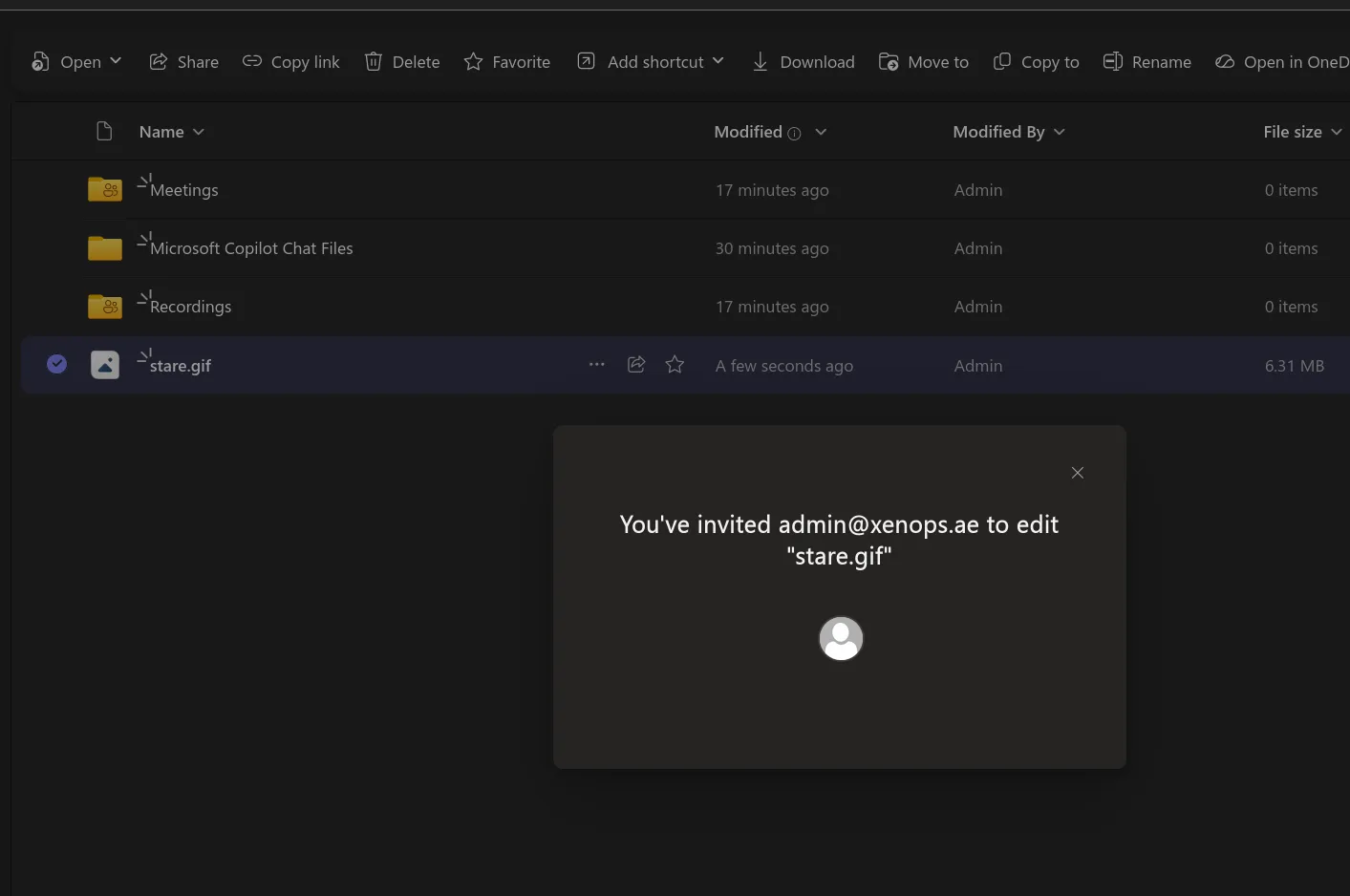
Once shared, the user the file is shared with is automatically added as a guest user to the tenant if the user is external.
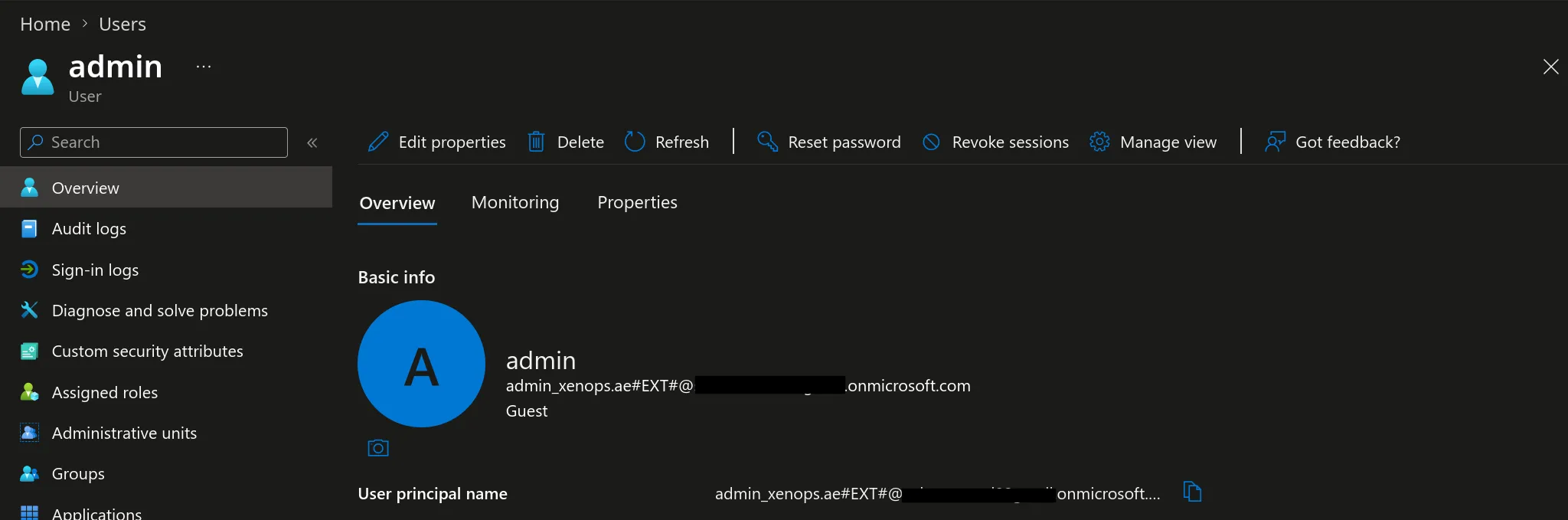
In both cases above, the guest user was added to the Entra Admins group due to the dynamic group membership rule.
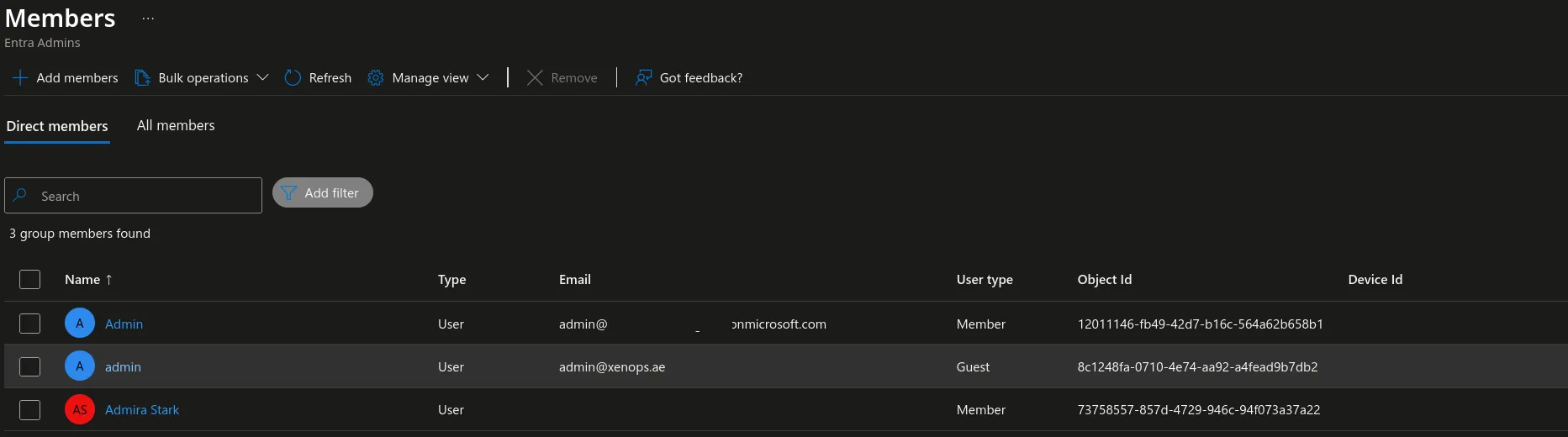
There are other means to invite external users as guests into the tenant, but they mostly behave in the same manner as the two examples above. As in, through the different applications a regular user can reach. But, as indicated earlier, this depends on the external identities settings set. This is a research area we’re looking into at the moment, surely there are some weird interactions that can work around it.
What you can do right now for your tenant
For steps you can take right now to harden your tenant, one should:
- Review your dynamic group rules for instances where the rule is too broad, and correct them.
- Limit the use of dynamic groups for groups that provide admin rights and roles and opt for manual selective access if possible.
- This is a more general advice, but opt for restrictive guest access. In the
External Identitiessettings, only allow admins to invite users (3rd option), and use whitelisting forCollaboration restrctions.